How to read a whole folder of Markdown files on a Mac
To read a folder of Markdown files, open the folder, not the files. In Pagewide, choose File › Open Folder… (⇧⌘O). Its Markdown files appear as a tree in the sidebar, each one opens in a tab, and the tree updates as files are added or removed. Code editors such as VS Code can open a folder too, but they open files for editing.
Folders of Markdown are everywhere now: a project's docs folder, a notes folder, and the plans, specs and research notes that AI coding tools write by the dozen. This guide covers how to move around one quickly.
Open the folder
There are three ways to open a folder in Pagewide:
- File › Open Folder…, or press ⇧⌘O.
- Drag the folder onto Pagewide's Dock icon.
- In Finder, Control-click the folder and choose Open With › Pagewide.
The sidebar shows only what you came to read. Hidden files, node_modules and folders with no Markdown in them are left out.
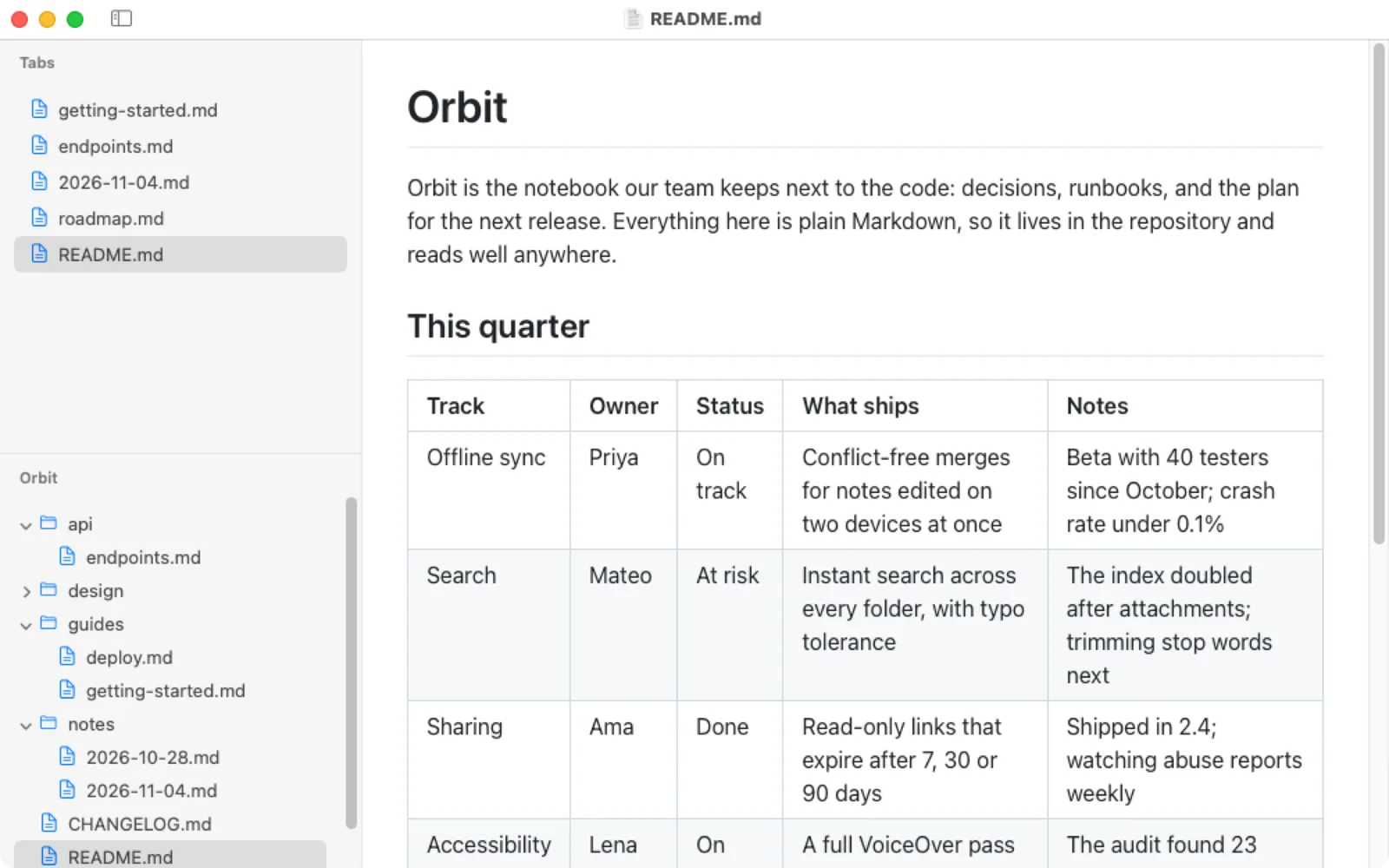
Move between files with tabs
Click a file in the tree and it opens in a new tab. If it is already open, Pagewide switches to that tab. ⌥-click opens it in the current tab instead.
- Tabs on top or in the sidebar. Choose View › Tabs on Top for a tab bar, or View › Tabs in Sidebar for a vertical list.
- Switch with the keyboard. ⌃⇥ and ⌃⇧⇥ go to the next and previous tab. ⌘1 to ⌘8 jump to a tab, and ⌘9 to the last one.
- Hide the sidebar, keep the tabs. With tabs in the sidebar, hiding it leaves a strip of lettered tiles, one per open file.
Read two files side by side
To compare a plan with the file it refers to, right-click the other file's tab and choose Show in Split View. Both files share one tab, with a divider you can drag. Right-click the shared tab and choose Split Tab to separate them again.
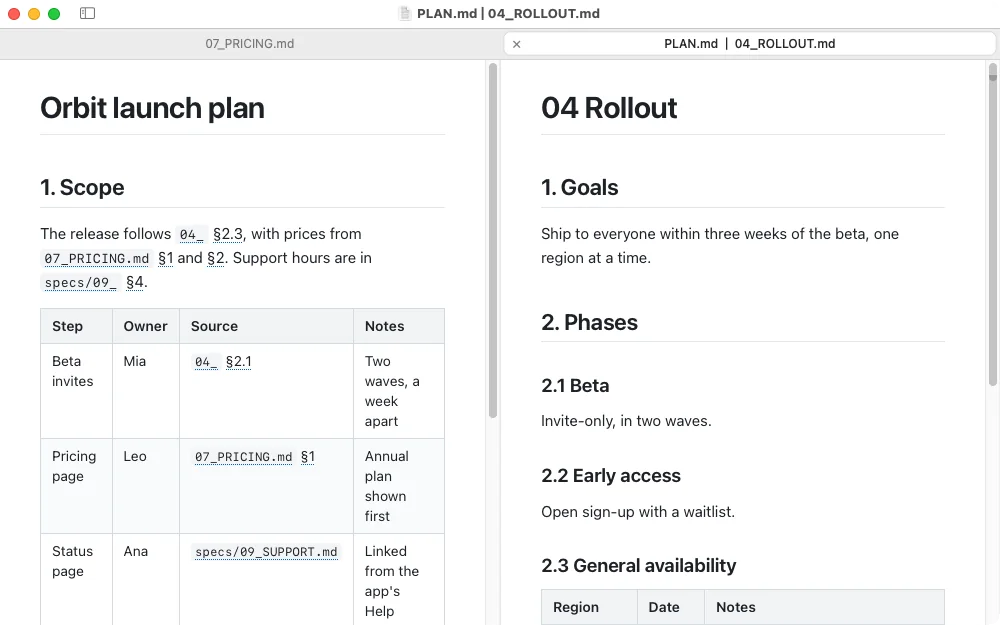
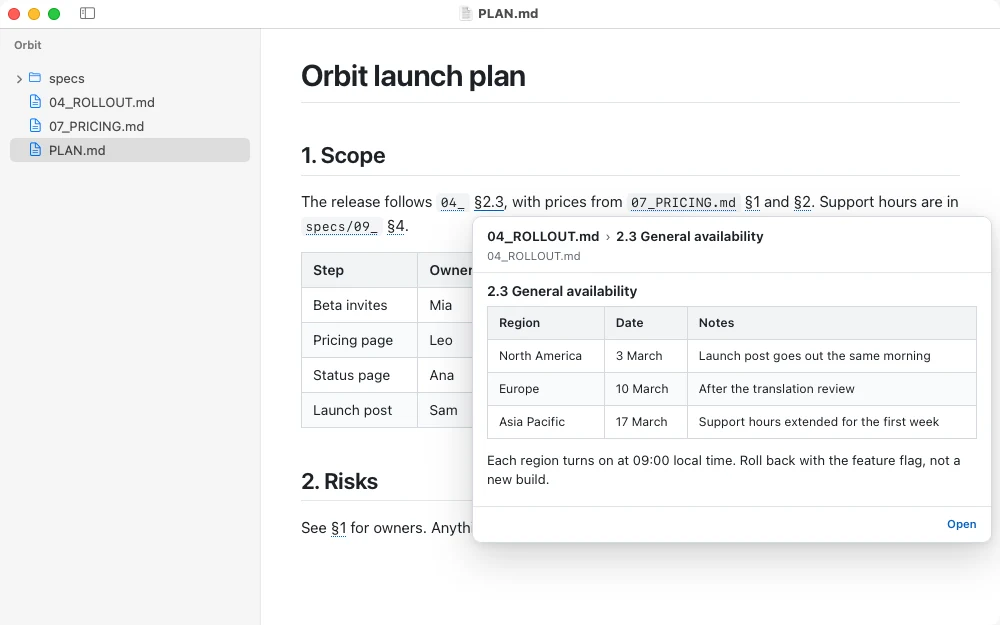
Follow the references between files
Notes in one folder refer to each other in shorthand: "see 04_ §2.3", "per 07_PRICING.md". With a folder open, Pagewide turns those into links. Point at one to preview that file or section, and click it to open the file at that section. Smart References explains which forms it understands.
Keep reading while the files change
When a file changes on disk, its tab reloads in place, at your scroll position. When files are added or removed, the tree updates. That makes Pagewide a good second window while an editor, a script or an AI agent writes the files.
Reading an Obsidian vault or a docs folder
An Obsidian vault is a folder of Markdown files, so Pagewide can open it read-only. Obsidian's own [[wiki links]] show as plain text in Pagewide, because they are not standard Markdown. Standard links between files work: a link to another text file opens it in a new tab, at the #anchor if there is one.
Questions
Can Pagewide open a folder with hundreds of Markdown files?
Yes. The sidebar lists the folder's Markdown files as a tree, and only the files you open are shown in tabs. Very large single files open with a short loading spinner, and from 500 KB Pagewide asks first.
Does opening a folder change anything in it?
No. Pagewide only reads, and it never writes to your folder. Its own settings and remembered reference choices are kept in your Library folder.
Can I see other text files in the folder, like code or JSON?
The sidebar lists Markdown files. Other text files, such as code, JSON or logs, open read-only when a link points to them or when you open them from Finder, shown exactly as written.
Related: wide tables, read whole, and split view and tabs in the help pages.