Smart References: links between your Markdown files
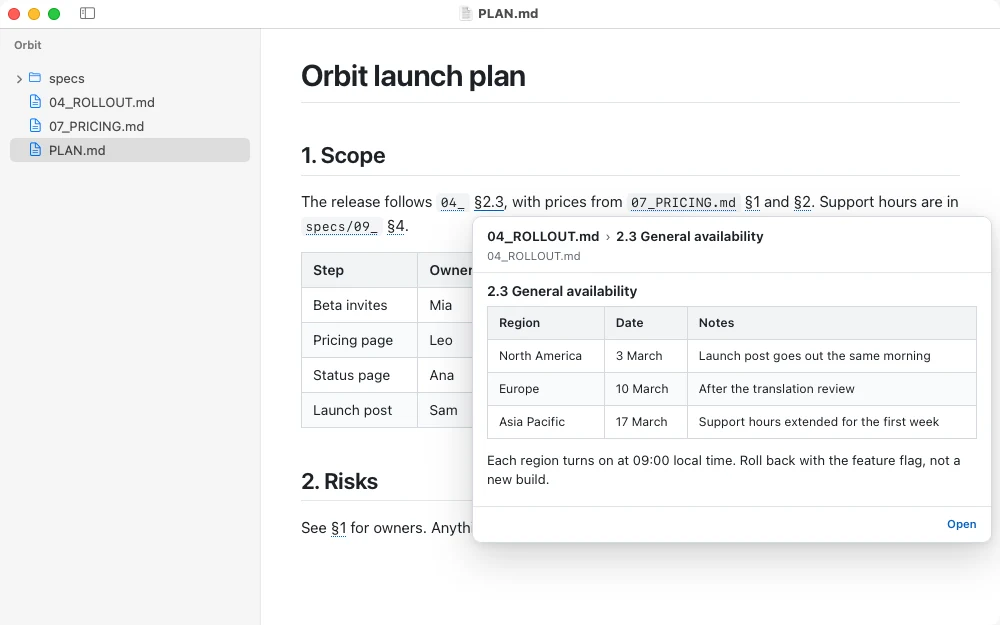
Smart References turn the shorthand that notes use for each other into links. With a folder open, a file name in backticks such as `27_` or `03_PAGE_STANDARD.md`, and a section such as §8.7, become links. Point at one to preview that file or section; click to open it there. Turn it on or off in View › Smart References. It is on by default.
What counts as a file reference
A file reference is written inside backticks, the way most notes and AI tools write file names.
| Written as | Finds |
|---|---|
`27_`, `01S` | The file whose name starts with that number |
`research/27_` | The same, inside that folder |
`03_PAGE_STANDARD.md` | The file with that name, anywhere in the folder |
`research/27_SERP.md` | A path, from this file's folder or the top of the folder |
`/Users/me/notes/a.md`, `~/notes/a.md` | That file, even outside the folder |
Shorthand works only with a folder open. Absolute paths and paths starting with ~ work anywhere. Anything that doesn't match a file stays plain text, so there are no dead links.
What counts as a section
Sections are written as §8.7, § 6.2 or section 4, and in runs such as "§10 and §11" or "sections 6.2, 6.3".
A section belongs to the file reference just before it, if only spaces, commas, "and", "or", "to", brackets and other sections come between them, in the same paragraph or table cell. Otherwise it means a section of the current file.
Section numbers are matched against numbered headings, such as ## 8.7 Title, ### §8.7 or ## Section 8.7. The section runs to the next heading of the same or a higher level.
Preview, open, and more
- Point at a reference to preview the section, or the start of the file. Esc closes the preview.
- Click to open the file in a new tab, scrolled to the section. If it is already open, Pagewide switches to that tab. ⌥-click opens it in the current tab.
- Right-click for every matching file, Remember for this folder, Show in Finder, Copy Path and Forget Choice.
When several files match
Pagewide picks the best match in this order:
- A file you chose before for this folder.
- A file named in full elsewhere in the document.
- A Markdown file over other kinds.
- A file in the current file's folder, then at the top of the folder.
- The shortest path.
If there is still a tie, the reference is shown muted and its preview lists the files to pick from. When other files also match, the bottom of the preview says Click to see N more matches. Open the list and click a file to use it instead. Pagewide remembers that choice for the folder, and you can change it the same way at any time.
Remembered choices, and clearing them
Your choices are kept in ~/Library/Application Support/Pagewide/reference-choices.json, on your Mac only. To forget one, right-click the reference and choose Forget Choice. To forget all of them and make previews read their files again, choose Edit › Clear References Cache and Prefs…. The same item is in the reference's right-click menu.
Read-only stays read-only
A reference opens a file in a tab or shows it in Finder. It never runs anything. In print, references are plain text.
Questions
Why is a file name in my notes not a link?
Smart References need a folder open, and the file name must be inside backticks. Check that View › Smart References is ticked, and that a file with that name or number exists in the folder.
Why does a reference look grey?
A muted reference matches more than one file equally well. Point at it and choose the right file from the list in the preview. Pagewide remembers your choice for that folder.
Do Smart References change my files?
No. They are drawn on screen only. Your Markdown files are never edited, and the only thing saved is your list of chosen matches.
Related: reading a whole folder of Markdown, and split view for reading a reference next to the note that cites it.