Split view and tabs
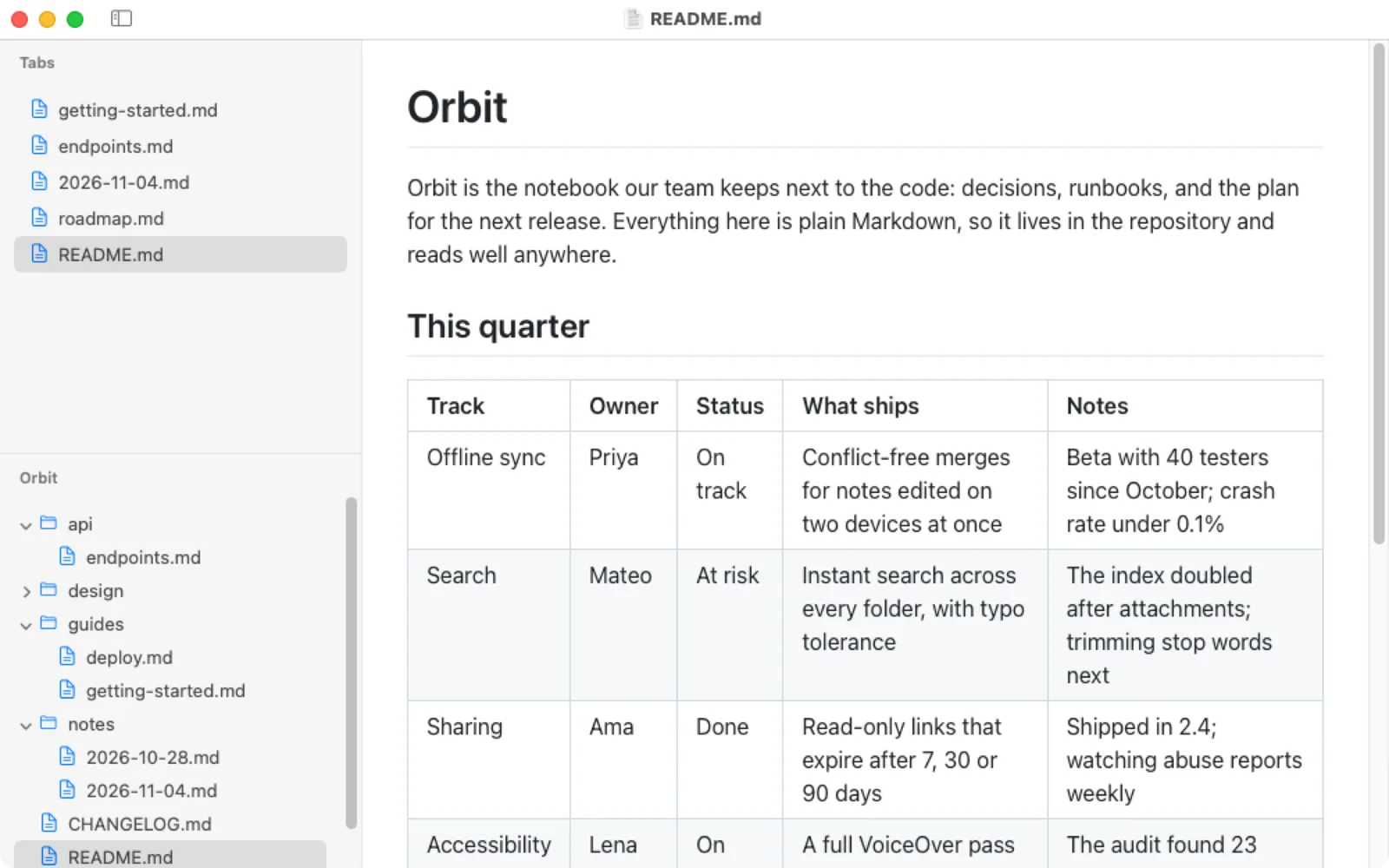
Every file you open in Pagewide gets a tab, shown on top or in the sidebar. Switch tabs with ⌃⇥ and ⌃⇧⇥, or ⌘1 to ⌘9. To read two files side by side, right-click the other file's tab and choose Show in Split View. Choose Split Tab to separate them again.
Tabs on top or in the sidebar
- View › Tabs on Top shows a tab bar above the document once you have two tabs, like native macOS tabs.
- View › Tabs in Sidebar lists the tabs at the top of the sidebar, above the folder tree.
Both work the same way: drag to reorder, middle-click or click × to close, and right-click for Close Other Tabs.
Switch tabs from the keyboard
| Keys | Goes to |
|---|---|
| ⌃⇥ or ⇧⌘] | Next tab |
| ⌃⇧⇥ or ⇧⌘[ | Previous tab |
| ⌘1 to ⌘8 | That tab |
| ⌘9 | The last tab |
These work wherever the focus is, in the page or in the sidebar. The full list is on keyboard shortcuts.
Split view: two files in one tab
- Open both files, each in its own tab.
- Right-click the tab of the file you want beside the current one.
- Choose Show in Split View.
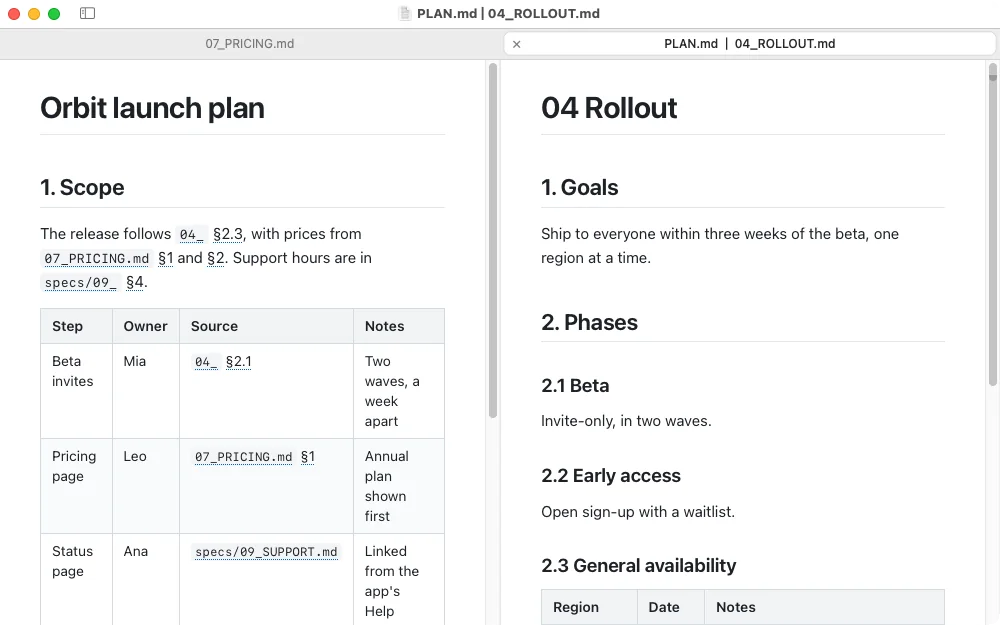
The two files now share one tab, labelled "A │ B", with a divider you can drag. Find, Print, Zoom and Show in Finder act on the side you clicked last. ⌥-clicking a link or reference replaces that side.
To separate them, right-click the shared tab and choose Split Tab. The second file gets its own tab again. Closing a shared tab closes both files.
The sidebar button: peek and letter tiles
The sidebar button in the title bar, next to the window controls, works like the one in Safari. Point at it to slide the sidebar over the page for a moment. Click it to keep the sidebar open, or to hide it. ⌃⌘S also shows or hides it.
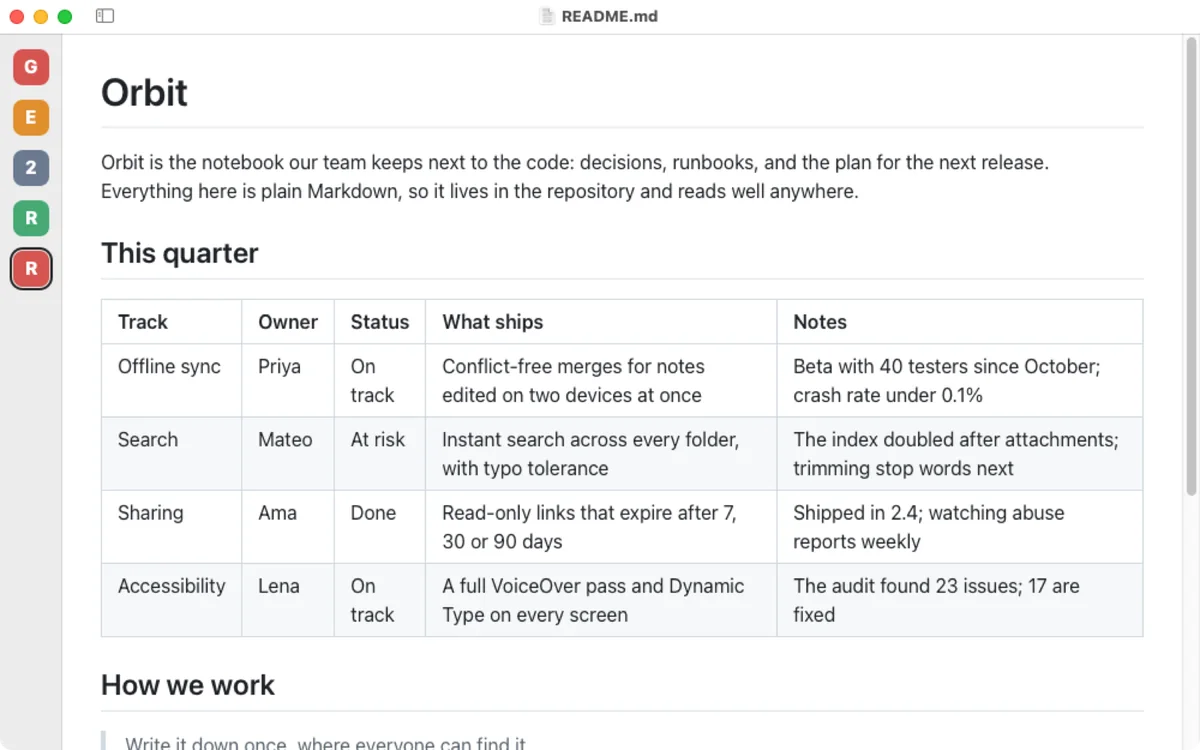
With tabs in the sidebar, hiding the sidebar leaves a narrow strip of lettered tiles, one per open file, so you can still switch tabs with one click.
Questions
Why is Show in Split View greyed out?
Split view joins two single files. If the current tab or the one you right-clicked is already split, choose Split Tab on it first.
What happens if I click a file that is already open?
Pagewide switches to the tab that already shows it, instead of opening a second copy. The same happens when you click a reference to an open file.
How do I close every tab but one?
Right-click the tab you want to keep and choose Close Other Tabs, or press Option-Command-W while it is the current tab.